How to localize an iOS and Mac app in four languages in a day
GPX Explore and WorkoutGPX had been English-only since the day they shipped. Both are small SwiftUI apps, one of them for iPhone, iPad and Mac from the same code, and I had been putting localization off for the usual reason: it looked like a week of clicking through Xcode’s String Catalog editor, then a week of screenshots. It took a day, and most of that day was not the translation. Here is what actually had to happen, in the order it happened, with the parts that bit me. German, French, Spanish and Japanese; the same four for the store listings.

1. Let the compiler find the strings
A String Catalog (Localizable.xcstrings) is a JSON file. Xcode fills it by syncing with the
build, but only when you build from the IDE; xcodebuild does not touch it. What the build
does produce, with SWIFT_EMIT_LOC_STRINGS = YES, is a .stringsdata file per source file
under DerivedData, listing every localizable string literal the compiler saw: every
Text("…"), every LocalizedStringKey, every String(localized:).
So the catalog does not need the editor at all. A small script reads the .stringsdata
files, collects the keys, looks each one up in a translations.json that lives next to the
source, and writes the catalog:
{
  "Moving time": { "de": "In Bewegung", "fr": "En mouvement", "es": "En movimiento", "ja": "移動時間" },
  "%lld segments": {
    "de": { "one": "%lld Segment", "other": "%lld Segmente" },
    "fr": { "one": "%lld segment", "other": "%lld segments" },
    "es": { "one": "%lld segmento", "other": "%lld segmentos" },
    "ja": { "other": "%lld セグメント" }
  }
}
The script prints every key that has no translation yet, which is the whole to-do list.
GPX Explore came out at 109 keys, WorkoutGPX at 177. Plural forms go into the catalog as
variations.plural and Japanese gets only other. Two more things the same way: an
InfoPlist.xcstrings for the permission prompts (keyed by the plist key, even when the value
comes from a build setting), and knownRegions in the project file, which is the one line
Xcode still insists on.
2. The strings the compiler cannot see
Building with the four languages and launching the German app showed the real work. About a
tenth of the interface stayed English, and every case was the same mistake in a different
costume: a string that reached the screen without ever being a LocalizedStringKey.
- A label passed as
Stringto a helper view.stat(value, label: "Distance")wherelabelis aStringparameter. Make the parameter aLocalizedStringKeyand the literal at the call site is picked up. - Enum raw values shown in pickers.
case satellite = "Satellite"displayed withText(mode.rawValue). Give the enum avar title: LocalizedStringKey, keep the raw value as the stored setting, and list the raw values for the script, because the compiler never sees them as literals. - Helpers that return display strings.
switch type { case .running: return "Running" }. UseString(localized: "Running"). - Hand-made plurals.
"segment\(n == 1 ? "" : "s")"can only ever be English. One key,"%lld segments", with plural forms in the catalog. - Map annotation titles that double as identifiers. This one was sneaky. The markers on
the map were created with
annotation.title = "Start"and then found again withannotations.filter { $0.title == "Start" }. Localize the title and the filter breaks; leave it and the callout says Start in Japanese. The fix is a handful of constants used at every site:
enum MarkerTitle {
    static let start = String(localized: "Start")
    static let end = String(localized: "End")
    static let peak = String(localized: "Peak")
    static let valley = String(localized: "Valley")
}
What does not get localized: units in the data (km, bpm), file contents, and anything
that is the name of the product. Watch the last one; more on it below.
3. Look at every language, on every device
The only way to know the translation fits is to see it. Long German words in a narrow iPhone
card, Japanese with no plurals, French accents in a heavy title. Both apps can be launched in
a language without touching the device settings, because UserDefaults reads launch
arguments:
xcrun simctl launch <udid> com.objectgraph.GPXExplore -AppleLanguages "(ja)" -AppleLocale ja_JP
open -a GPXExplore file.gpx --args -AppleLanguages "(de)" -AppleLocale de_DE
The screenshot script I already had for the App Store takes a language and writes into a folder per language, so the same six scenes exist in five languages on three devices within an hour. Two things it learned that day, which apply to any screenshot pipeline:
- Switch off your ratings prompt. The app asks for a rating after the third good moment,
and the third screenshot is a good moment. The German hero shot had the star dialog in the
middle of it. Every capture now launches with
-reviewPromptDisabled YESand the prompt honours it. - Check each capture the moment it is taken. Size, and whether the map actually drew. MapKit on the Mac paints nothing while another window covers the app, and I was working in front of it while the run went. Two full rounds of Mac captures went into the bin before the script learned to bring the app forward, test the map area for a flat colour, and relaunch the scene instead of moving on.

4. The store listing, per locale, through the API
App Store Connect has two layers of text: the app-level name and subtitle, and the
version-level description, keywords, What’s New and promotional text. Both are per locale and
both are writable through the App Store Connect API. I keep one JSON file per locale
(de-DE.json, fr-FR.json, es-ES.json, ja.json) and a script that creates or updates
the localizations for a version on each platform. Three details cost me a retry each:
- Promotional text is at most 170 characters, and the API says so with a 409, not a friendly message. Write the promo short in every language before importing.
- When you create an app-info localization for a new locale, App Store Connect quietly creates the version localization too. A script that then tries to create it again gets a 409. Re-read the list before every create.
- iOS and macOS are separate version records with separate localizations, even for one universal app. Import twice.
5. Screenshots in four languages without redoing the layouts
This was the part I expected to be a slog, and it was the part with the best tool. I lay out App Store screenshots in ButterKit: captures on device frames, a caption above each. Its document is a package with a JSON file inside, and a language is a variant of each artboard: same frame, same background, same text style, its own caption and its own screenshot. The English artboards stay the source; every other language is a set of variants ButterKit lists in its Localizations panel and uploads to that locale.
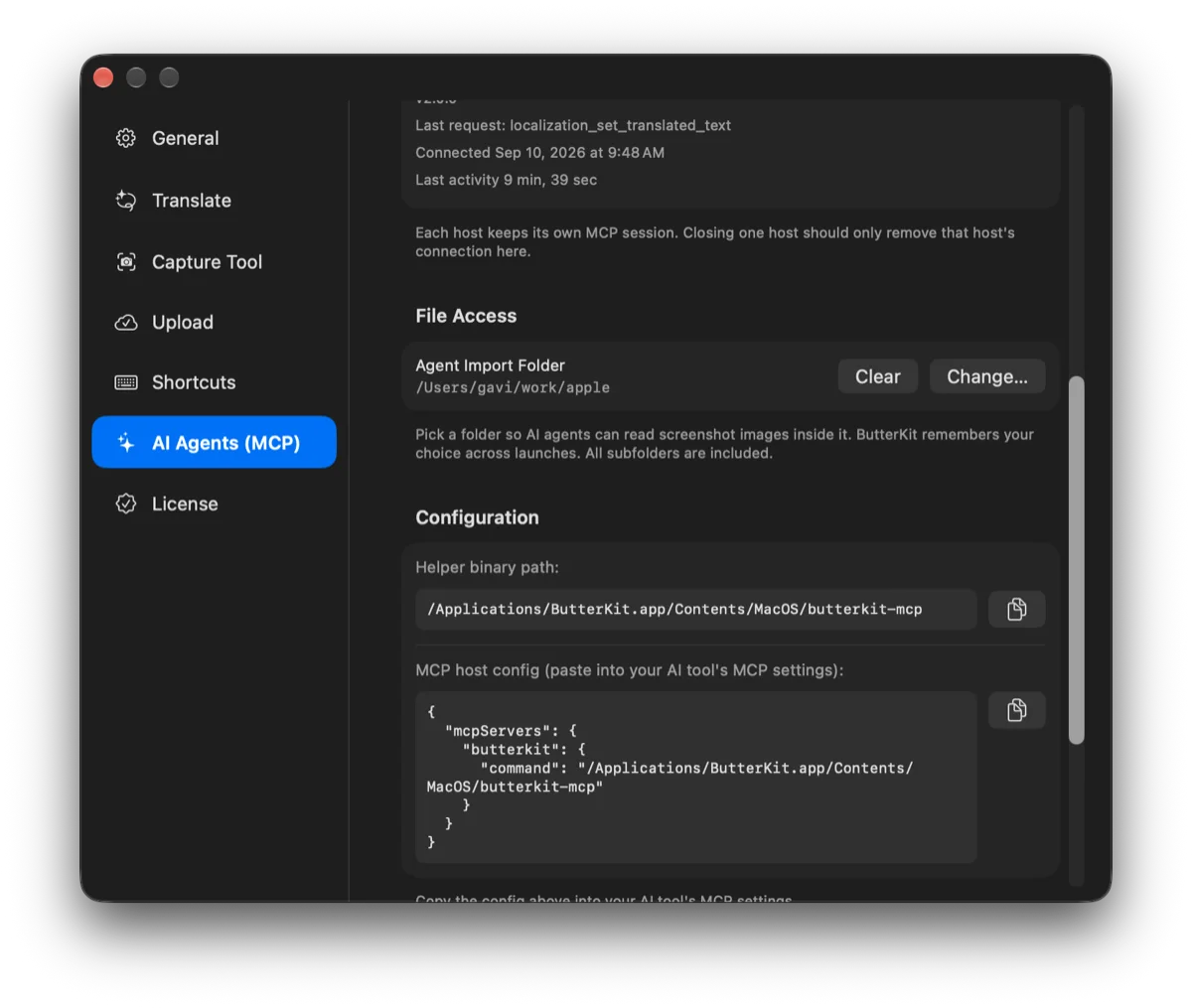
ButterKit 2 also has an MCP server (Settings → AI Agents), which means a script, or the
coding agent I already work with, can drive it: add a language, set the translated caption on
each variant, put the localized capture on its device, save, and upload every locale to App
Store Connect with the key configured in the app. The tools are named what they do:
localization_add_language, localization_set_translated_text,
design_set_device_screenshot, asc_upload_screenshots. Two things to know before you start:
it can only read screenshot files from the folder you pick as its Agent Import Folder, and its
auto-translation will happily translate your app’s name (“GPX Explore” became “GPX erkunden”),
so pin the title yourself.
Seventy-two variants, six scenes on three devices in four languages, uploaded to both platforms’ 1.5 records from the terminal. Nothing was dragged into a browser.

What I would tell myself before starting
- The catalog is a build artefact. Generate it; do not edit it.
- Keep translations in one plain file per app and translate keys, not screens. The same key shows up on iPhone, iPad and Mac.
- Launch in the language, then look. The compiler finds ninety percent; your eyes find the rest, and the rest is where the embarrassing screenshots come from.
- Store text and screenshots are data too. Once both go up from files, the fifth language is an afternoon.
Both apps ship with the four languages in their 1.5 releases: GPX Explore for Mac, iPhone and iPad, and WorkoutGPX for iPhone and iPad, in English, German, French, Spanish and Japanese. The App Store shows each in the language of your device, and so do their pages here: Deutsch, Français, Español, 日本語. If you use either app in one of them and a word is wrong, tell me; the fix is one line in a JSON file.