Plan a 5K route around your house, then run it with the turns in your ear
A 5K from your own door is easy to plan and hard to remember. You know the first corner and the last one. The middle is where you take the wrong path and come home half a mile short. On iPhone, GPX Explore does both halves. You draw the loop with a few taps and the line follows the sidewalks and the running paths by itself. Then you run it with headphones on, the phone in your pocket, and every turn is read to you.
The example here is a loop of about 5K in Central Park. It starts at Engineers’ Gate on East 90th Street, runs up the east side of the Reservoir, over the Great Hill at the north end and back down the west side. Your loop will go around your own block, and the steps are the same.
Drawing a route and running it turn by turn need GPX Explore Pro. Recording a run without a route is in the free app.
Draw the loop and let it find the paths
- On the start screen, tap Draw a New Track. The map opens ready to draw.
- In the bar at the top of the map, tap the button for how lines are drawn and choose Follow Paths (Walking).
- Tap your door, then tap a few places along the way: the corner where you turn, the far end of the park, the top of the hill. You don’t need to tap every bend.
Each tap asks Apple Maps for walking directions from the last point, and the new stretch lands on the path, around the corners and along the curves. A tap beside a path counts as a tap on it. While Apple Maps answers, the new stretch is dashed and the bar says Finding a route….
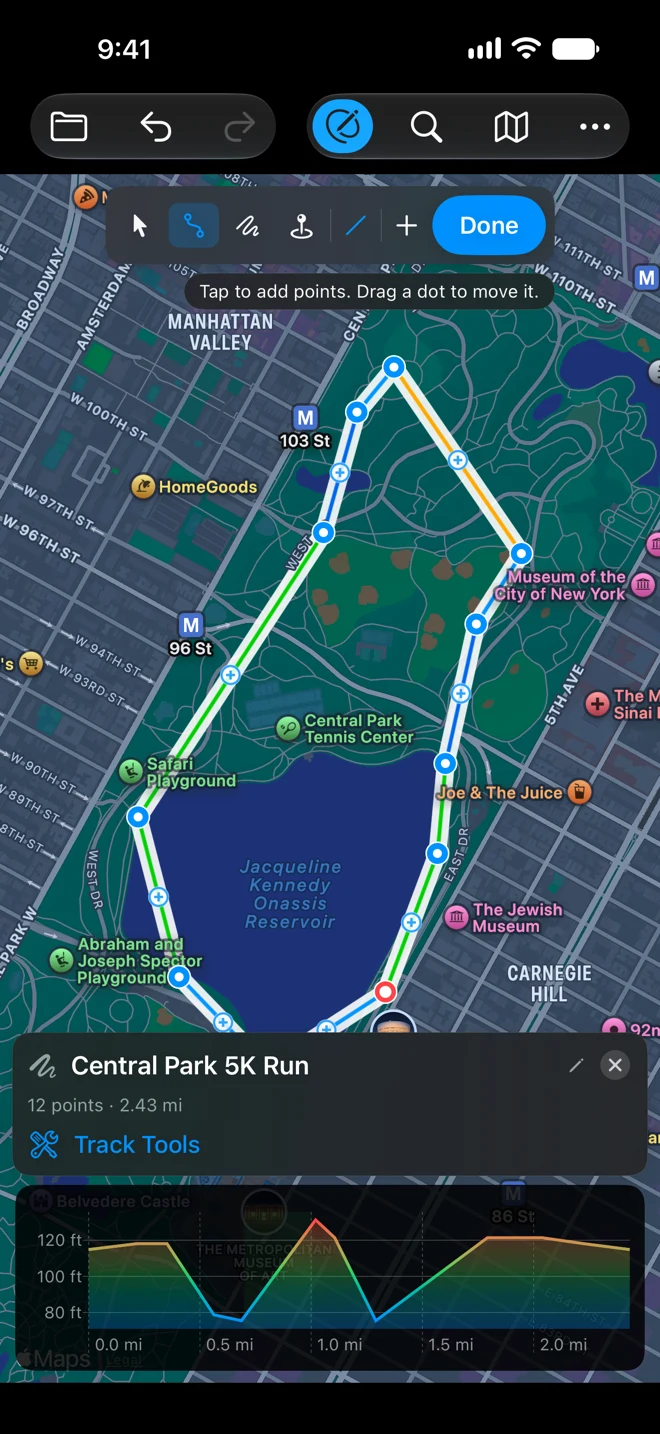
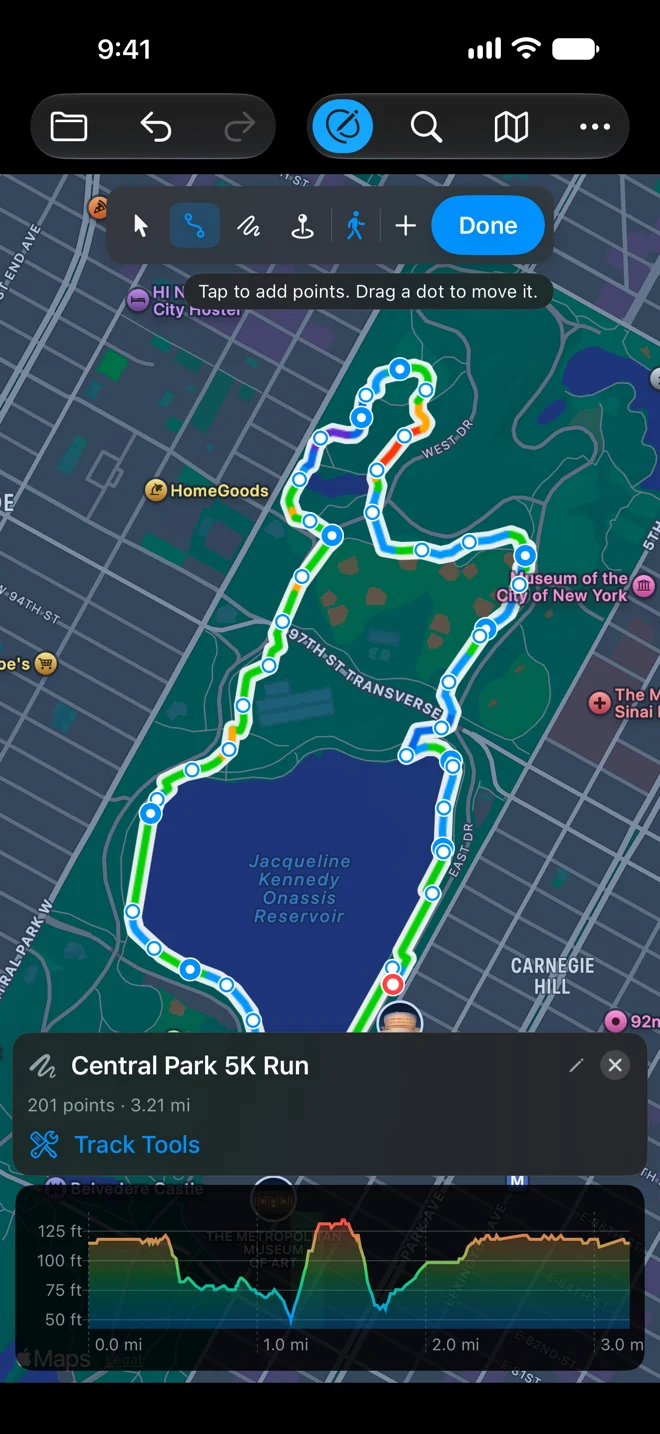
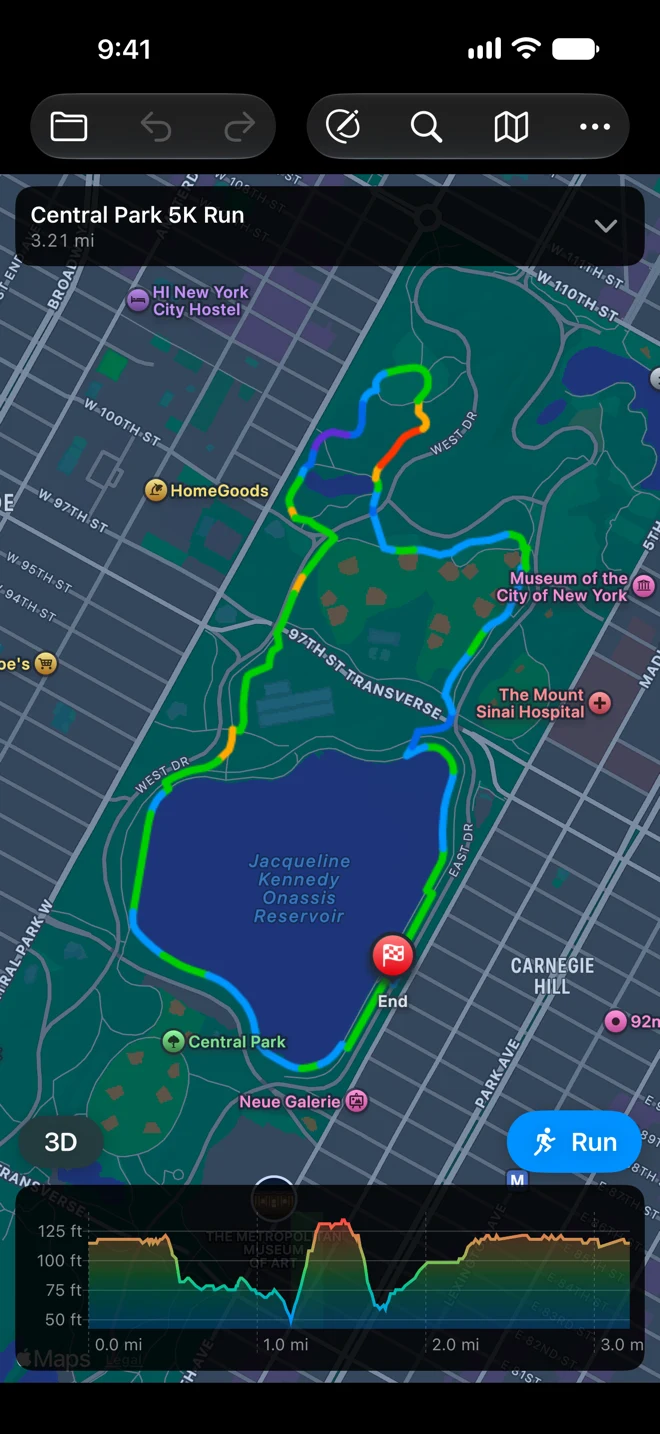
The two pictures show the same twelve taps. With Straight Lines the route cuts across the Reservoir: 2.43 miles you can’t run. With Follow Paths (Walking) it goes around on the running track and the park paths: 3.21 miles.
Close the loop, then make it 3.1 miles
After each tap or drag, the panel under the map shows that one point. Once Finding a route… is gone, tap the × on it and the panel shows the whole track: its name, its points and its length.
To come home, open Track Tools in the track’s panel and choose Close Loop. It adds the way back to your first point, along the paths too. In the example, the last tap at Engineers’ Gate did the same thing.
Now check the length with the loop closed (“201 points · 3.21 mi” here). A 5K is 3.11 miles, so the example came out a tenth of a mile long (5.17 km). To trim it, choose the arrow (Select and Move) and drag one of the points you tapped a little inward, say the one at the top of the Great Hill. With Walking still chosen, the route is found again through the new place and that point’s panel opens. When Finding a route… is gone, close it with × to read the new length, and drag again until it says 3.11. Undo takes back the last change. The pictures below show the loop as drawn, at 3.21 miles.
Every new point also gets its height from our terrain model, so the chart shows the hills before you run them. Here the bump in the middle is the Great Hill, about 140 feet of climbing in all.
Last, tap the track’s name in the panel and give it one. A name with “run” in it, like “Central Park 5K Run”, makes the button above the chart say Run. Tap Done.
More on drawing in the guides to drawing a track, following paths and roads and the track tools.
Set up the run
Tap Run above the chart. The Run This Route sheet shows the distance, the climbing, the time at a running pace and the number of turns. Tap the turns to see the list. Then check four settings:
- Activity: Run. It picked Run from the name. On foot it notices smaller detours: 35 meters off the route instead of 50 on a bike.
- Directions: Voice. Chimes Only plays a sound before each turn without the words.
- Keep Screen On: off. The phone goes in your pocket and the directions are spoken with the screen locked.
- Record Your Track: on. Your run is recorded as you go and saved as a GPX file when you end.
Alerts sets when turns are announced: Early, Normal or Late. Then tap Start Run.
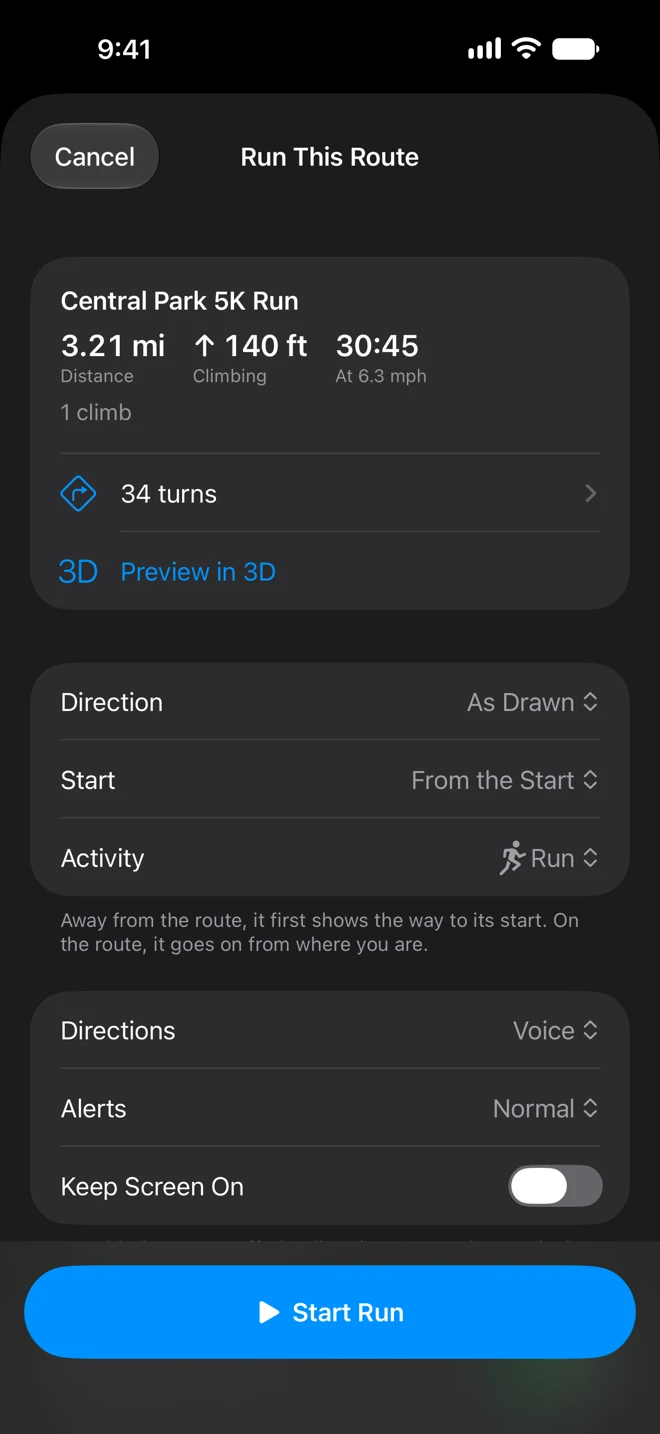
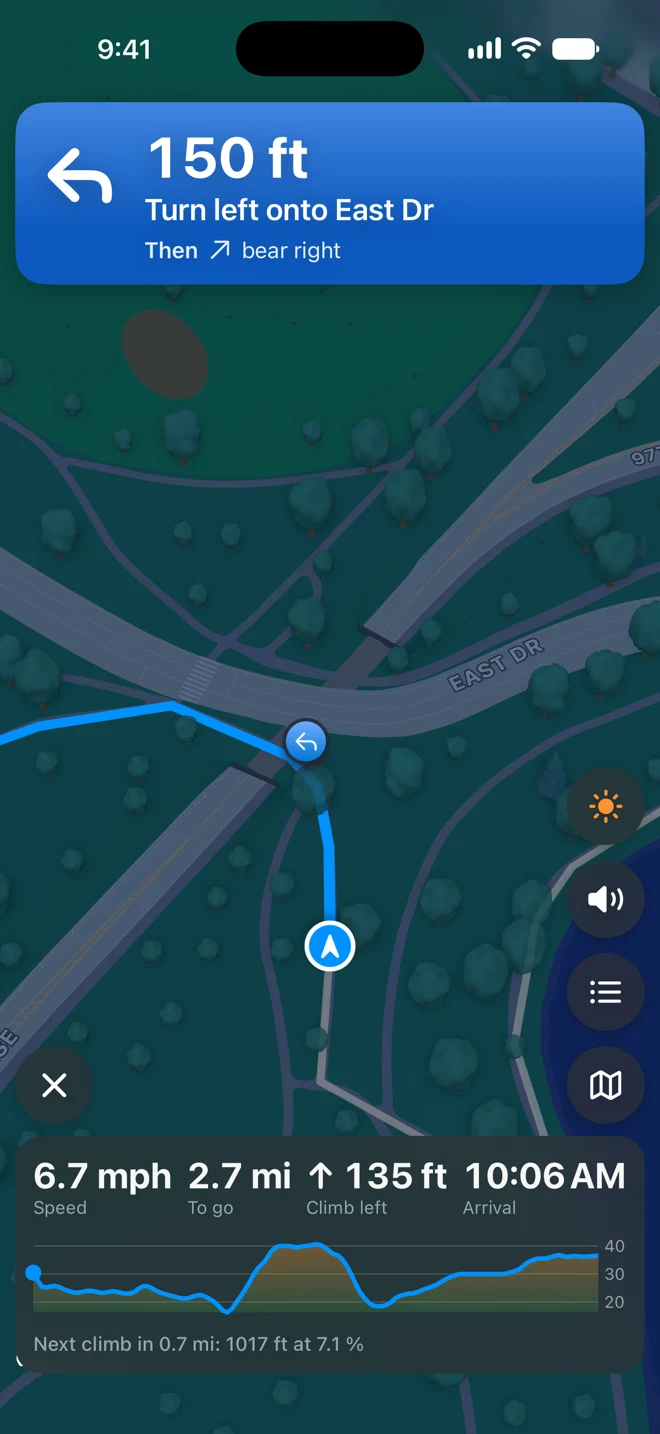
The running screen here, and the two below, were captured in the iPhone simulator following the route, not on a run.
What you hear
- Most turns, twice. First a prompt ahead of the turn, with the distance to go (“… turn left onto East Drive, then bear right”), then a short reminder just before it (“Turn left onto East Drive”). How far ahead depends on your speed: the first prompt aims for about 20 seconds out but usually comes no closer than about 200 feet, and the reminder a few seconds or about 50 feet before. At an easy running pace the 200 feet is what counts. Alerts moves both, Early sooner and Late later, as far as those minimums allow. A turn right after another may get only the reminder, and two close turns are said as one.
- Street names come from Apple Maps while you have signal. A path with no name is just “Turn left”.
- Your music or podcast. Music gets quieter while the voice speaks and a podcast pauses, then both come back.
On a street run, keep one earbud out, or use Transparency mode if your earbuds have it, so you still hear cars and bikes.
With the screen locked you don’t need to look at all. On iOS 18 and later the next turn also shows on the Lock Screen and in the Dynamic Island. With the iPhone locked, a turn, going off the route and arriving tap your Apple Watch.
If you miss a turn
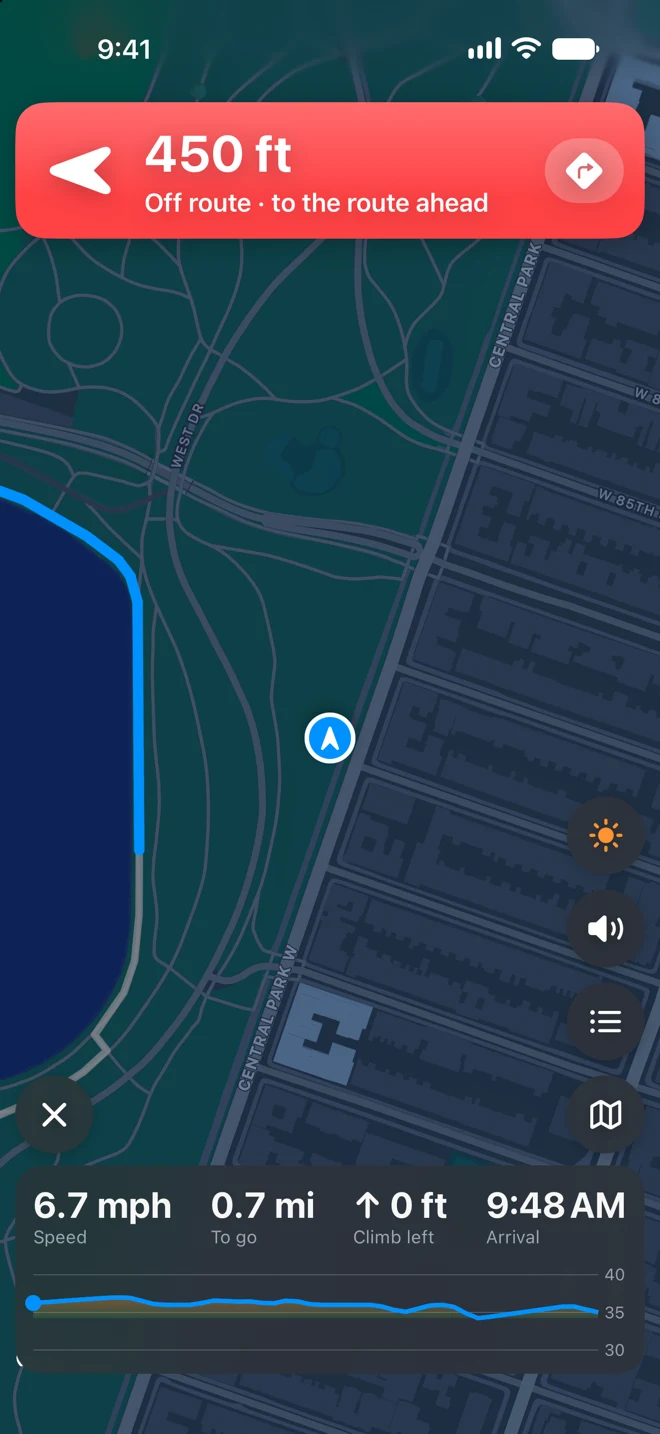
On foot, once you are more than 35 meters (about 115 feet) off the route for 15 seconds, the banner turns red and the voice says which side the route is on: “Off route. The route is 300 feet to your left.” Tap the button in the banner and Apple Maps gives you spoken walking directions back to the route, to a point a little ahead of where you left it. When you’re back on it, you hear “Back on route.”
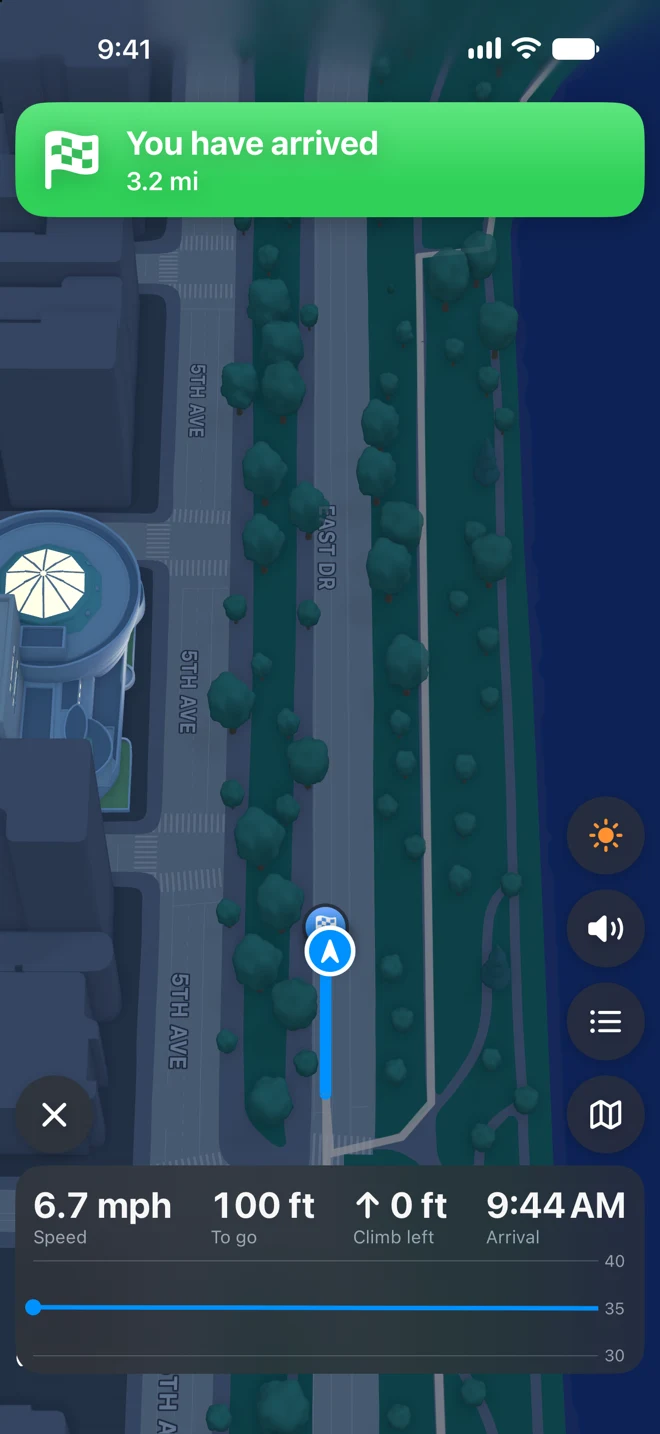
The finish
At your door you hear “You have arrived.” Tap × and then End Run. With Record Your Track on, the screen turns into a summary: your run drawn over the route, moving time, distance, gain and average pace. Save to Apple Health adds it as a workout with its map. The GPX file is in the Rides folder of GPX Explore’s folder in Files.
Everything about the riding screen, the Lock Screen and the summary is in the guide to following a route.
A few more ways to run it
- The same loop the other way. In the sheet, set Direction to Reversed. The line and its turns both flip.
- Start halfway round. Set Start to Join Where I Am and it picks up at the nearest point of the loop, going your way.
- An out-and-back instead of a loop. Draw to the turnaround, then choose Track Tools ▸ Out and Back to add the way home.
Without a route
To record a run without planning one, tap Record a Track on the start screen. It is free, and the run is saved as a GPX file you can add to Apple Health. Recording starts at once in the activity you used last, Walk the first time: tap the activity button at the top right of the recording screen and choose Run, and the next run starts as one. See Record a track.