GPX Explore 2.2: see it first
I choose a ride by its climbs. Since 2.1, GPX Explore finds every climb on a route and rates it, so I know how long and how steep each one is before I go. What a rating does not tell me is what the hill looks like: whether the climb winds up a valley or goes straight at the ridge, and what waits on the other side.
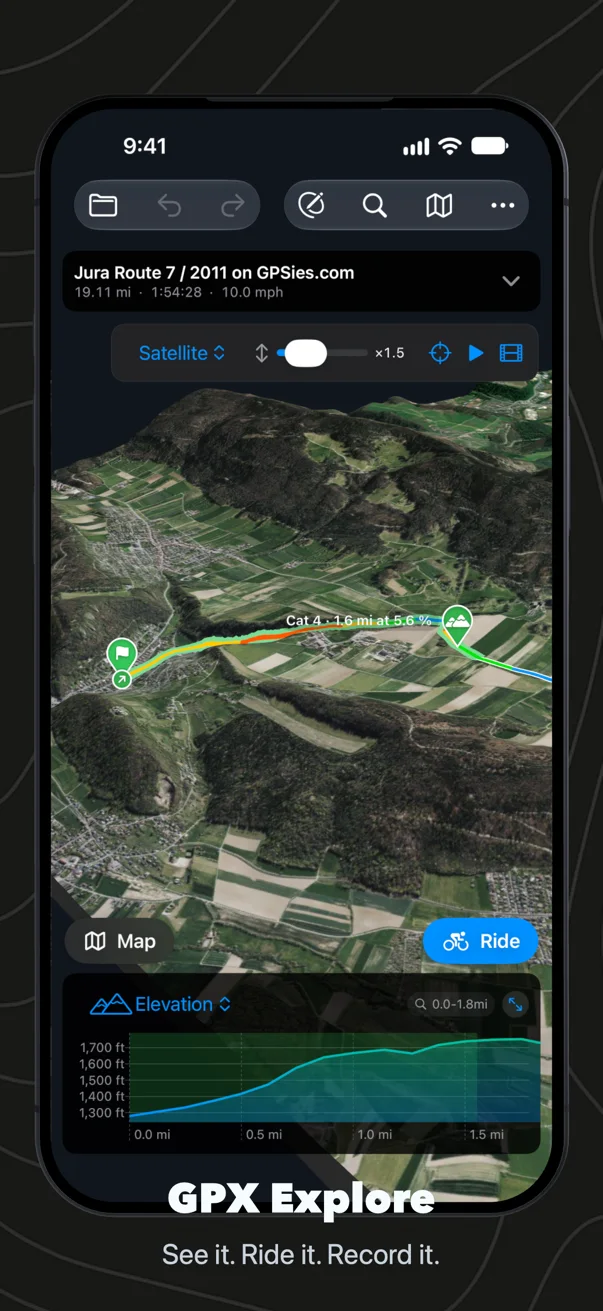
Version 2.2 shows the ground before you go. Open any track, tap 3D, and the hills it crosses are there, with the route lying on them and every climb marked.
The ground under the line
The 3D view draws the ground around the track from the terrain model on our own server, the same 30 m model Geo Elevation uses: a block for a short ride, a corridor about a kilometer and a half either side for a long one. You choose how it looks. Relief is our own shaded relief, drawn from the heights on your device; Satellite and Hybrid lay Apple’s imagery over the same hills. The track lies on top in the colors it has on the map, by grade or by height, and stays as wide on the screen as the map’s line however close you zoom.
Each climb is marked on the ground the way the route card rates it: its stretch of the track in the color of its category, a disc where it starts, and at the top a label like “Cat 2 · 6.2 km at 5.4 %”. Pick a climb on the card and the camera flies to it and shows it from the side, start on the left, the way the chart draws it. Let it go and you see the whole ride again. A slider stretches the heights up to four times, for rolling rides whose climbs hide on a flat-looking map.
The first time, the ground takes a few seconds to load; after that it is kept on the device, and the ride opens at once, offline too. On iPhone the 3D button sits at the bottom left of the map, opposite Ride. On iPad and the Mac it is in the toolbar, and on the Mac also under View ▸ 3D Terrain (⇧⌘T).
Fly the Route
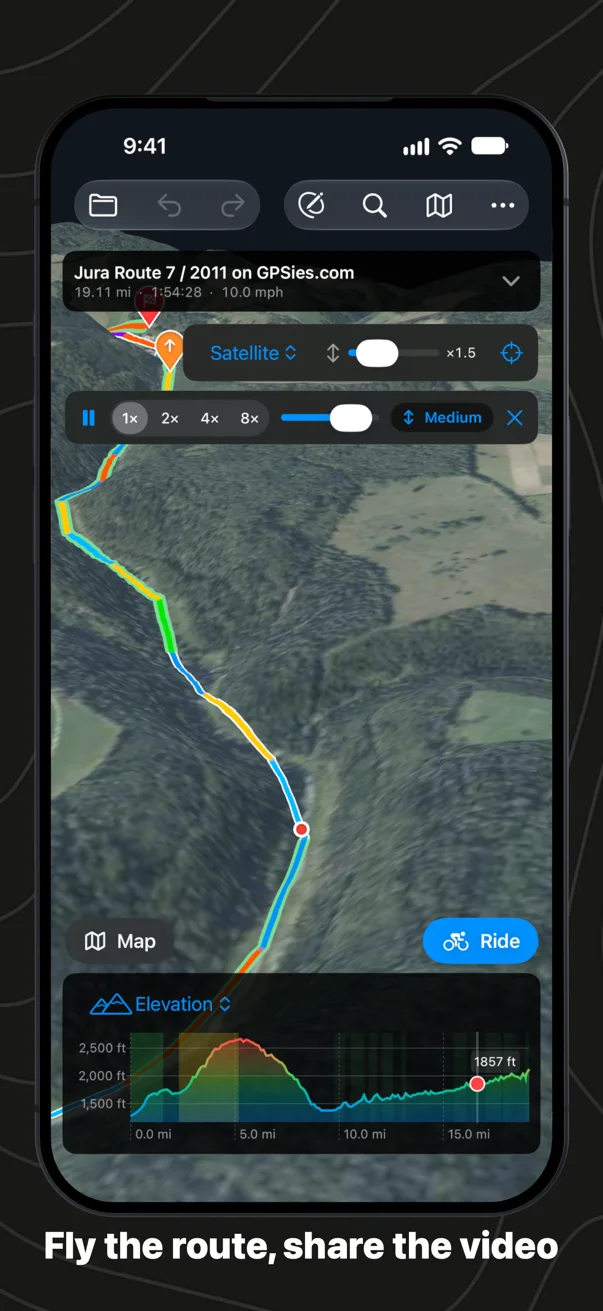
The play button sends a camera along the track, behind and a little above the rider. Its heading is eased over the road ahead, so a switchback does not swing the view around. Choose 1×, 2×, 4× or 8× and a camera height of Low, Medium or High, or drag the scrubber to go anywhere along the route. Pause, and you can turn the camera around the rider to look back down the climb; press play and it glides back behind. While it flies, the chart’s cursor rides along, and on a climb a panel says which one it is, “Climb 3 of 9”, with the distance and the height still to go.
On iPhone and iPad, Preview in 3D in the sheet before a ride flies that ride’s route in the direction you chose, so you have seen it once before you set off.
A video to post
The film strip next to the play button turns the flight into a video. It opens on the whole ride, glides down to the start, flies the route behind the rider and rises to the whole ride again at the end, with the name, the distance and the climbing at the top and the elevation profile filling in at the bottom, the climbs as bars in their colors. A walk makes about 26 seconds and a ride of 75 km or more just over a minute, so it fits a story or a reel however long the day was. Vertical for stories and reels, square for a feed, horizontal for YouTube or a big screen. Then Share Video sends it to Photos, Messages, Instagram or Strava, and on the Mac Save… keeps it as a file.
The video is always drawn on our shaded relief. Apple’s imagery is for looking at in the app, not for copying into a file you post, so the video draws the ground itself, from the same heights, lit across the slopes and tinted by height. I like it better for a climb anyway.
The 3D view, Fly the Route and the video are part of GPX Explore Pro, on the Mac, iPhone and iPad.
Record a track, free
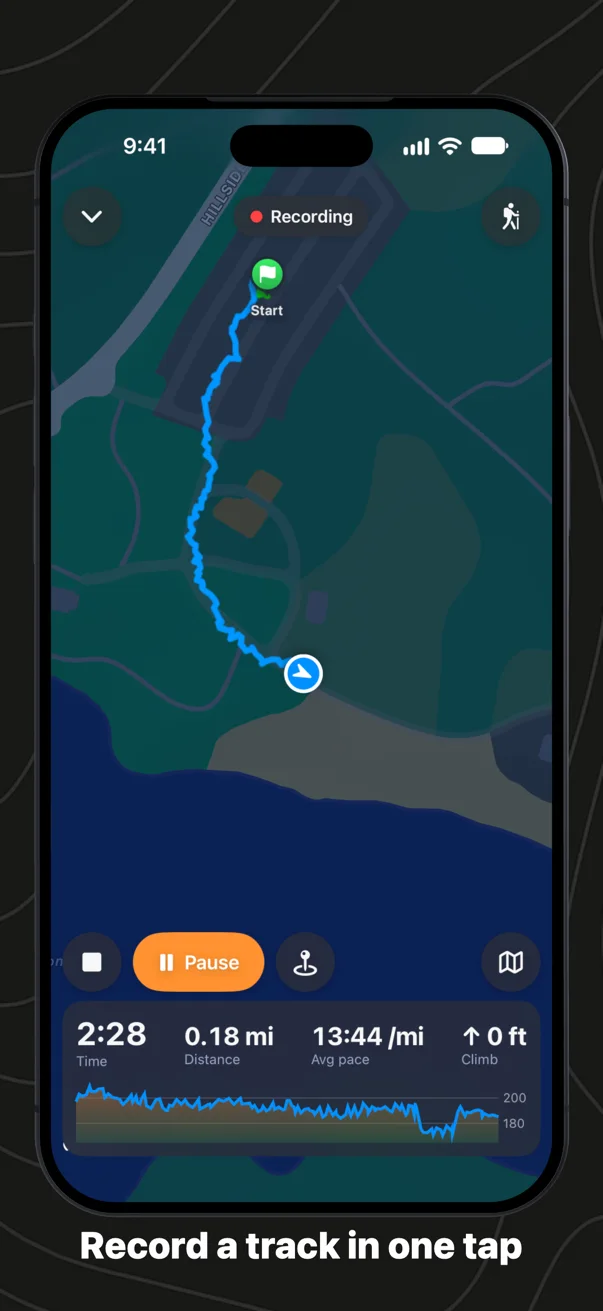
Until now GPX Explore recorded your track only while it guided you along a route. Version 2.2 records from scratch. Tap Record a Track on the start screen and it is recording: no route, no form, no name to type, and no Save button at the end.
The map follows you with the track so far in its grade colors. The panel counts the time, the distance, your pace on foot or your speed on a ride, and the climb, with the profile growing underneath, and it counts them the way the route card will count the saved file, so nothing jumps when you end. Pause for a coffee, or turn on Pause When I Stop in Settings and it pauses by itself while you stand still. Add a waypoint at the view. The chevron at the top puts the recording away so you can use the rest of the app, with a bar across the top that brings it back, and the Lock Screen and the Dynamic Island show the time running and the distance.
Tap End and the file is saved at once, named for when you started, like “2026-10-10 07-42 Morning Walk.gpx”, in the Recordings folder of GPX Explore’s folder in Files. The summary shows the track with its moving time, distance, gain and pace, with Save to Apple Health to add it as a workout with its route, Open to look at it on the map, and Share. The file is plain GPX 1.1, a segment for each stretch between pauses and your waypoints with their names, typed as the walk, run, hike or ride it was, so Strava, Komoot and Garmin Connect read it as one.
The part you should never notice is the one that matters most. GPX Explore writes the recording down as it goes. Lock the phone, switch apps, or let iOS close GPX Explore in the middle of a long day, and the recording carries on; the time it was closed becomes a break between two segments, not a straight line across the map. And if you have not moved for half an hour, a notification asks whether to stop and save.
Recording is free, on iPhone and iPad.
A cue sheet for the stem
Print a ride from the Share menu and the PDF report now carries its climbs: each one shaded and numbered on the profile, and a table with its category, where it starts, its length, gain, average grade and steepest 100 meters. Turn on Cue Sheet and the report ends with the route’s turns on pages of their own, in type large enough to read on the bars: the distance from the start and from the last cue, to the hundredth, an arrow, and “Turn left onto Rue de l’Église”. Waypoints near the route come in order with their names, and each climb is a line where it begins. The turns are the ones Ride announces, and the street names come from Apple Maps while the print sheet is open. Randonneurs have taped sheets like this to their stems for decades; now any GPX file makes one. Printing is free.
Climbing that reads true
Elevation gain is the number GPX apps disagree on most, and GPX Explore had it wrong too, in both directions. It counted every rise of more than a meter and a half. That missed the small rolls of a smooth recording, and it was far too fine for an iPhone, whose GPS heights wander three or four meters from one second to the next: every wander counted as climbing, and a walk came home with far more climb than it had.
Now GPX Explore measures how much each file’s heights jitter and counts a rise only once it is bigger than that: small steps for a watch’s barometer, larger ones for an iPhone’s GPS, larger still for a noisy file. In a recording made second by second, a single height that leaps away from its neighbors for a moment is put back in line before anything is counted, so one bad fix is not a climb and a descent. On Apple Health recordings the gain now comes close to Apple’s own figure, usually a little under it.
Testing the recorder on real walks showed one more thing. At a corner or among buildings an iPhone’s GPS sometimes jumps tens of meters to the side and straight back, and each jump added its length to the distance and its height to the climb. A recording now holds each fix for a second and drops one that jumps away and back while the phone measured you moving at your own pace. Rides recorded while following a route get the same filter.
And the smaller things
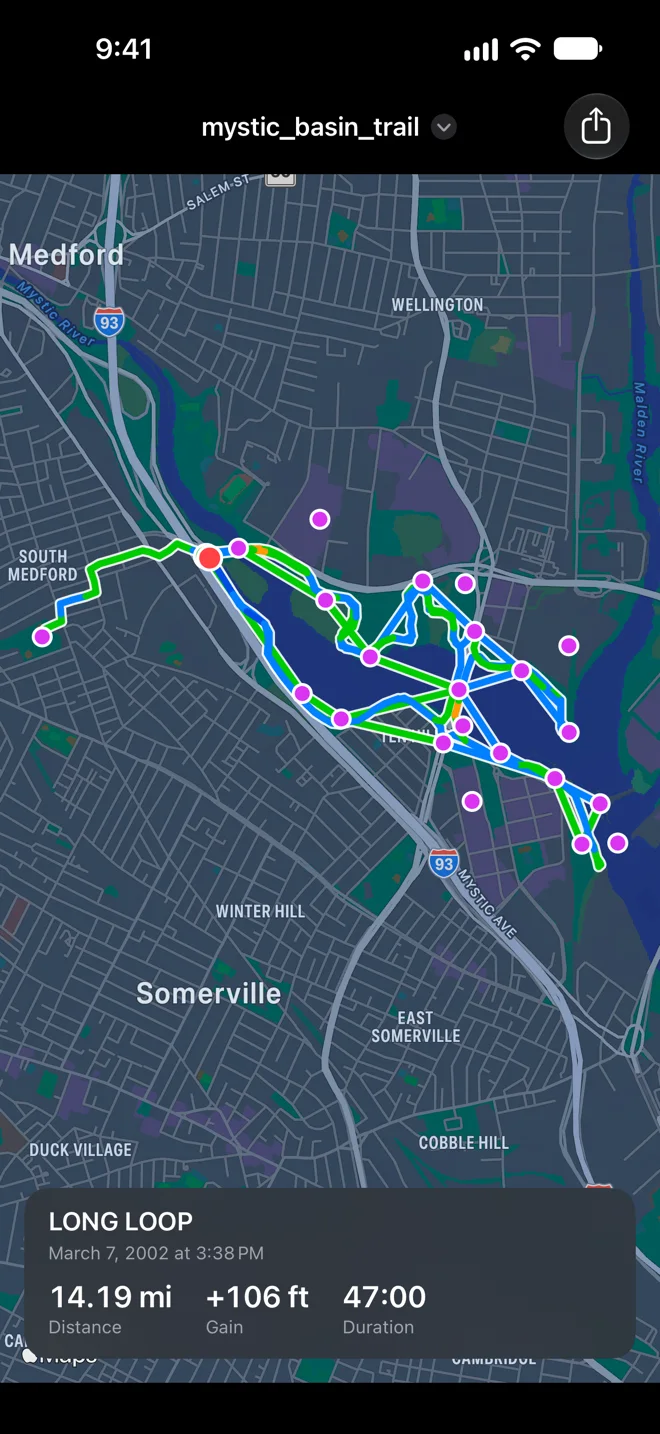
- Quick Look on iPhone and iPad. Tap a GPX file in Messages, Mail or Files and it previews as a map, colored by grade, with a card of its name, date, distance, climb and time.
- WorkoutGPX in one tap. In WorkoutGPX, the GPX Explore button opens a workout here, straight onto the map, with no list of apps to choose from.
- Your files in iCloud Drive, if you want them there. Workouts from WorkoutGPX, your recordings and rides, and files from Mail and Messages go in GPX Explore’s own folder. Keep it in iCloud Drive and your Mac opens them too. GPX Explore asks once and never moves them there by itself: workouts are health data, and that choice is yours.
- Every setting in one place. A gear on the iPhone and iPad start screen, and on the Mac a Settings window with General, Map and Terrain, shared by every window.
- Find a Place finds mountains, lakes and rivers again. Try “mt fuji”. On the Mac, Return and the arrow keys pick a result.
- Zero heights. Some devices write 0 m for a point with no height. A run of them now counts as missing, so a track no longer dives to sea level and back (Settings ▸ Treat Zero Heights as Missing, on by default).
What it costs
Viewing any GPX file is free, and so are the climbs, printing with the cue sheet, your Apple Health workouts and, on iPhone and iPad, recording a track. The 3D view with Fly the Route and the flyover video, riding turn by turn, drawing and editing are GPX Explore Pro: one purchase, no subscription, on your Mac, iPhone and iPad. If you already have Pro, 2.2 is yours.