Folding the iPhone Duo simulator from a script
An app on iPhone Duo has to work closed, open, half open like a book, half open on a table like a laptop, and upright. Xcode lets you put the simulator in each of those poses by hand, in Device Hub. It gives a script no way to do it: xcrun simctl has no fold, hinge or posture command, and neither does devicectl. So a screenshot script, a CI job or a coding agent can check the closed display and nothing else.
Other developers have worked out how Device Hub does it, and there are now several small tools that do the same from the command line. I tried one today on an app I am building, and it found two layout bugs that my usual check had missed. This is what I learned.
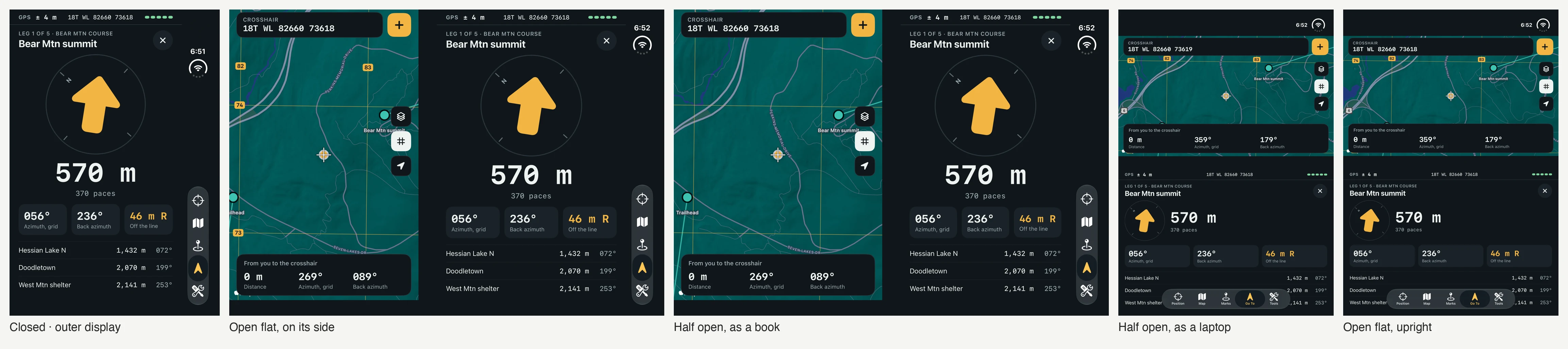
How the tools fold the simulator
When you drag the hinge slider in Device Hub (hold Option to see it), Xcode sends the simulator a vendor-defined HID event: usage page 0xFF61, usage 0x5B, carrying a small dictionary that names the control and the angle. The simulator treats it as the hinge moving. The rotate buttons send the same kind of event with an orientation.
The tools post that event themselves. The one I used, hinge by Artem Novichkov, is a shell script and about 200 lines of Objective-C. It compiles the helper for the simulator SDK, runs it inside the simulator with xcrun simctl spawn, and reads the angle back from CoreMotion to confirm the fold landed. Nothing clicks on Device Hub’s window, so it runs with no screen at all.
It is a private, undocumented interface. An Xcode update can break it, and Apple may ship a real command one day. I read both files before running them, and I would do the same with any tool of this kind.
The commands
brew install artemnovichkov/tap/hinge

hinge open                  # 180°, flat
hinge close                 # 0°, the outer display
hinge half                  # 90°
hinge 110                   # any angle from 0 to 180
hinge orient landscape-left # turn the device
hinge posture               # angle, orientation, which display is lit
hinge sweep 0 180 3         # open over three seconds
With one Duo simulator booted it finds the device by itself; -d <udid> names one.
Capturing every pose
Three things took me a few tries:
- Which display.
xcrun simctl io <udid> enumeratelists the screens. On my setup the outer display is screen 1 and the inner display is screen 3 (screen 2 is a TV-out port). Capture withxcrun simctl io <udid> screenshot --display=3 inner.png. Closed, the inner display is off; open, the outer one is. - Which way up. With the device orientation
portrait, the open inner display is on its side: 2853 × 2007 pixels, with the fold running down the middle, which is the book. Withlandscape-leftit is upright: 2007 × 2853, with the fold running across, which is the laptop. - Wait. The fold lands a few seconds after the command returns. I wait ten seconds before a capture, more for a map that has tiles to load, and I relaunch the app for each pose so every capture starts clean.
The whole run is short:
UDID=<the booted iPhone Duo>; APP=com.example.app
shot() { sleep 10; xcrun simctl io $UDID screenshot --display=$1 $2.png; }
pose() { hinge -d $UDID orient $1; hinge -d $UDID $2; xcrun simctl terminate $UDID $APP; xcrun simctl launch $UDID $APP; }

pose portrait close;        shot 1 closed        # outer display, 1398 × 2034
pose portrait open;         shot 3 flat-side     # inner display on its side
pose portrait 110;          shot 3 book          # fold runs down
pose landscape-left 110;    shot 3 laptop        # fold runs across
pose landscape-left open;   shot 3 flat-upright  # inner display upright
What it found
The app is a land navigation tool: your position as a grid reference, a map with the grid drawn on it, and an arrow to walk to a point. Open, it shows two pages: the map on one, the screen you are using on the other.
Before today I checked the open layouts on an iPad simulator, with a launch argument that pretends there is a fold in the middle of the window. That passed. The real poses did not:
- Open and upright, the app fell back to one page. My rule for two stacked halves wanted a window at least 900 points tall. The Duo’s inner display upright is 669 points wide and, once the bars are out, under 900 tall. No iPad is that shape, so the iPad never showed it.
- As a laptop, the lower half was too short for its screen. The arrow, the distance and the list below it were laid out for a phone’s height and ran under the tab bar. The lower half now gets a shorter arrangement, with the dial beside the distance.
Both are the kind of bug a user finds in the first minute and a faked fold never shows. A pretend fold tests my layout code against my own idea of the device. The simulator in the real pose tests it against the device’s actual sizes, bars and safe areas.
Other tools
I have used only hinge. These came up in the same search, and I have not tried them:
- foldctl sends the event through CoreDevice from the Mac side. The repository is archived.
- devicehubctl drives Device Hub itself, pressing the same buttons you would.
- duoctl adds touches on the inner display.
- serve-sim has a
foldcommand and a script that walks the angles and orientations. - Expo’s EAS CLI has a
hinge.setcontrol. - Nil Coalescing wrote up the Option-key slider in Device Hub, which is the place to start if you only need it by hand.
There is also an Apple Developer Forums thread asking for a supported command. If you want one too, a Feedback request is worth filing.
What I do not know yet
- Whether it holds on the next Xcode. I ran it on Xcode 27.2 with the iOS 27.2 runtime for iPhone Duo. The tool’s own notes say the reported angle settles a few degrees off on iOS 27.3.
- Whether the simulator’s poses match a device in the hand closely enough to skip that look. I do not think so: the last check of a pose is still a person holding one.