Introducing Catalyst: All Your AI in One Place
After two years of development, I’m launching catalyst.voov.ai. Catalyst started as an internal tool and has grown into a full multi-tenant AI platform that lets you connect to multiple AI providers, run code, generate images, search the web, and more — all from a single interface. What started as a personal project to scratch my own itch has grown into something I think others will find useful too.
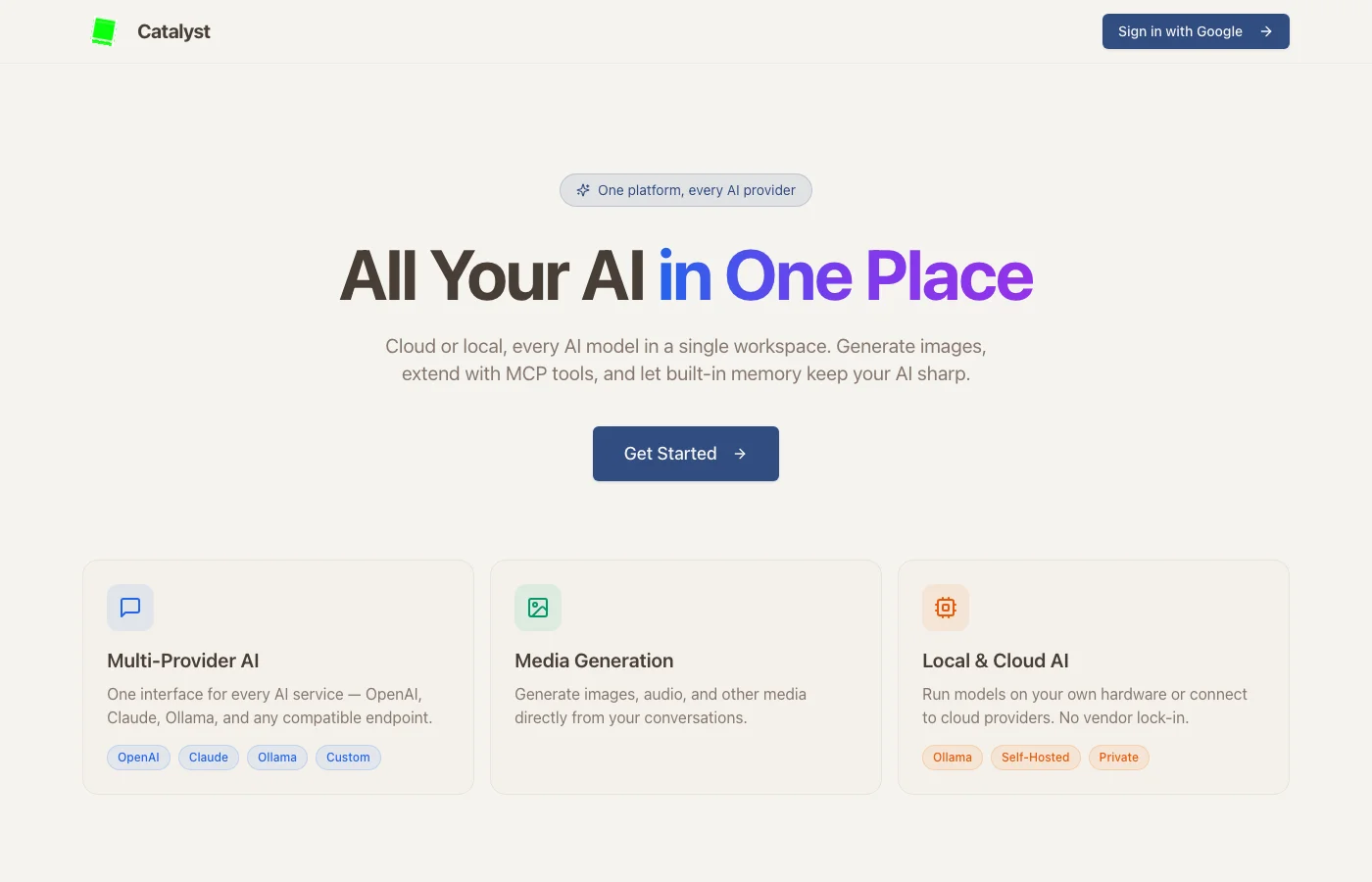
Why I Built This
I was tired of switching between ChatGPT, Claude, and various Ollama interfaces. I wanted one place where I could:
- Use any model from any provider
- Compare model outputs side by side
- Run Python code and see visualizations inline
- Generate and edit images
- Search the web and fetch URLs
- Share conversations with others
No single existing tool did all of this well, so I built Catalyst.
Multi-Provider AI Services
Catalyst connects to any OpenAI-compatible API. Right now I have Cerebras, local Ollama models, Google Gemini, and OpenAI all connected. Adding a new provider takes about 30 seconds — just paste the API endpoint and key.
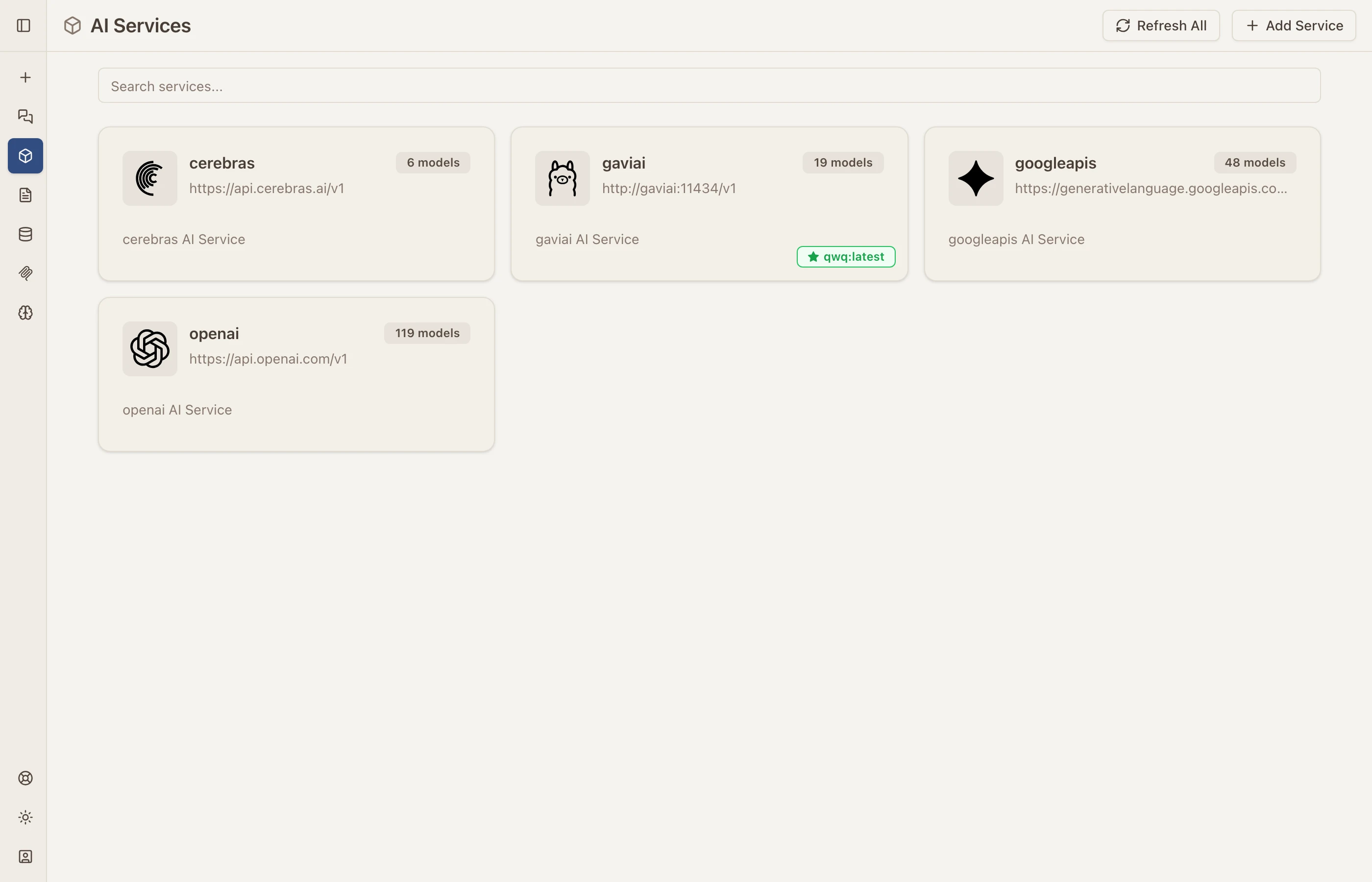
Each service card shows the provider, endpoint URL, and how many models are available. You can refresh model lists, add new services, and switch between them from the chat interface.
Side-by-Side Model Comparison
One of my favorite features. Send the same prompt to multiple models and see the results side by side. This is incredibly useful for evaluating which model is best for a particular task.
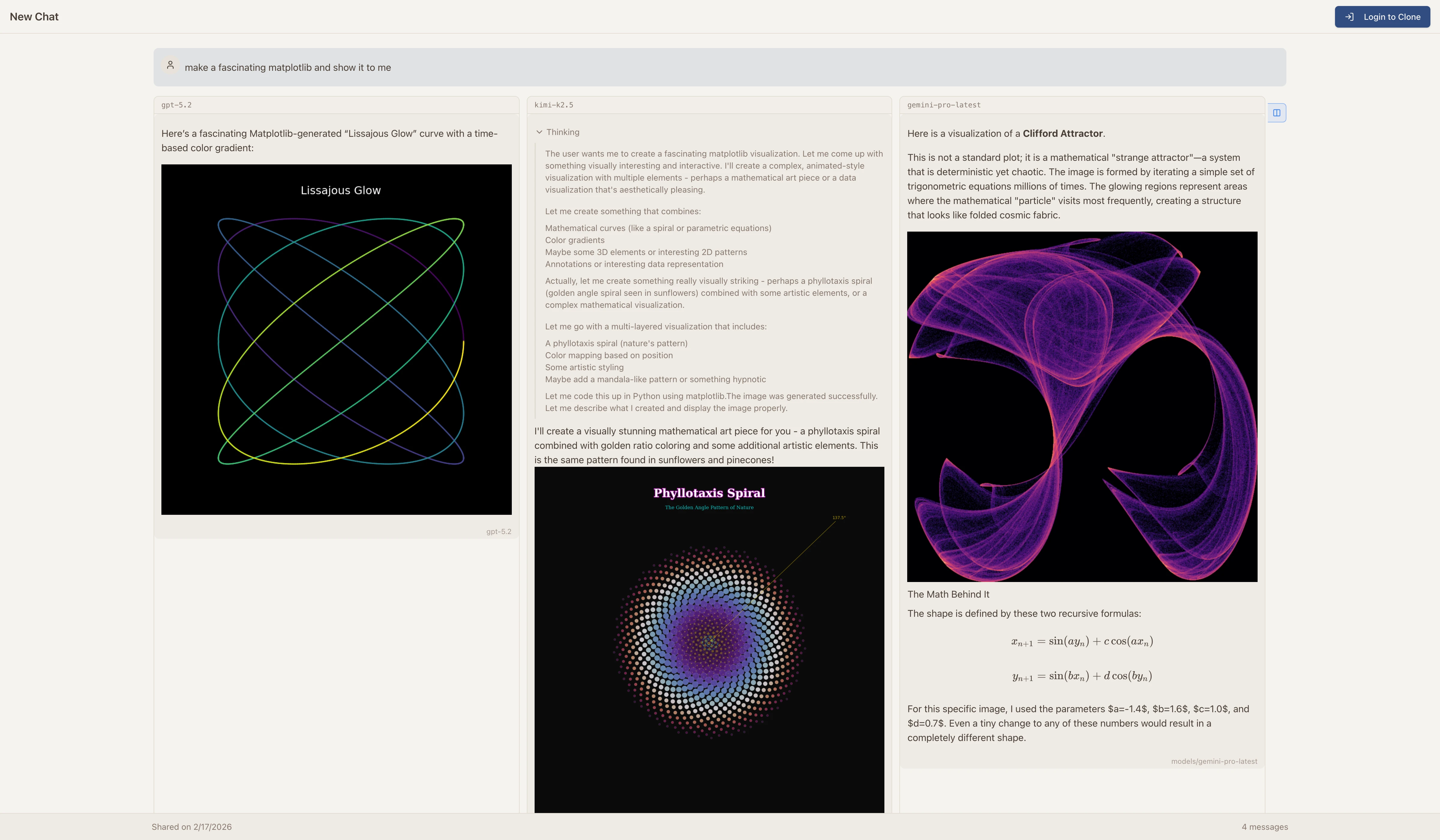
In this example, I asked three different models to create a “fascinating matplotlib visualization.” Each model chose a completely different approach — a Lissajous Curve, a Phyllotaxis Spiral, and a Clifford Attractor. Being able to see these side by side in one interface makes model evaluation so much easier.
Built-in Tools
Catalyst’s models have access to several built-in tools that they can invoke autonomously. The AI decides when to use each tool based on your request — this is what makes it feel like an AI agent rather than just a chatbot.
Python Code Execution
Models can write and execute Python code in a sandboxed environment. The output — including matplotlib charts, data tables, and printed results — renders directly in the conversation.
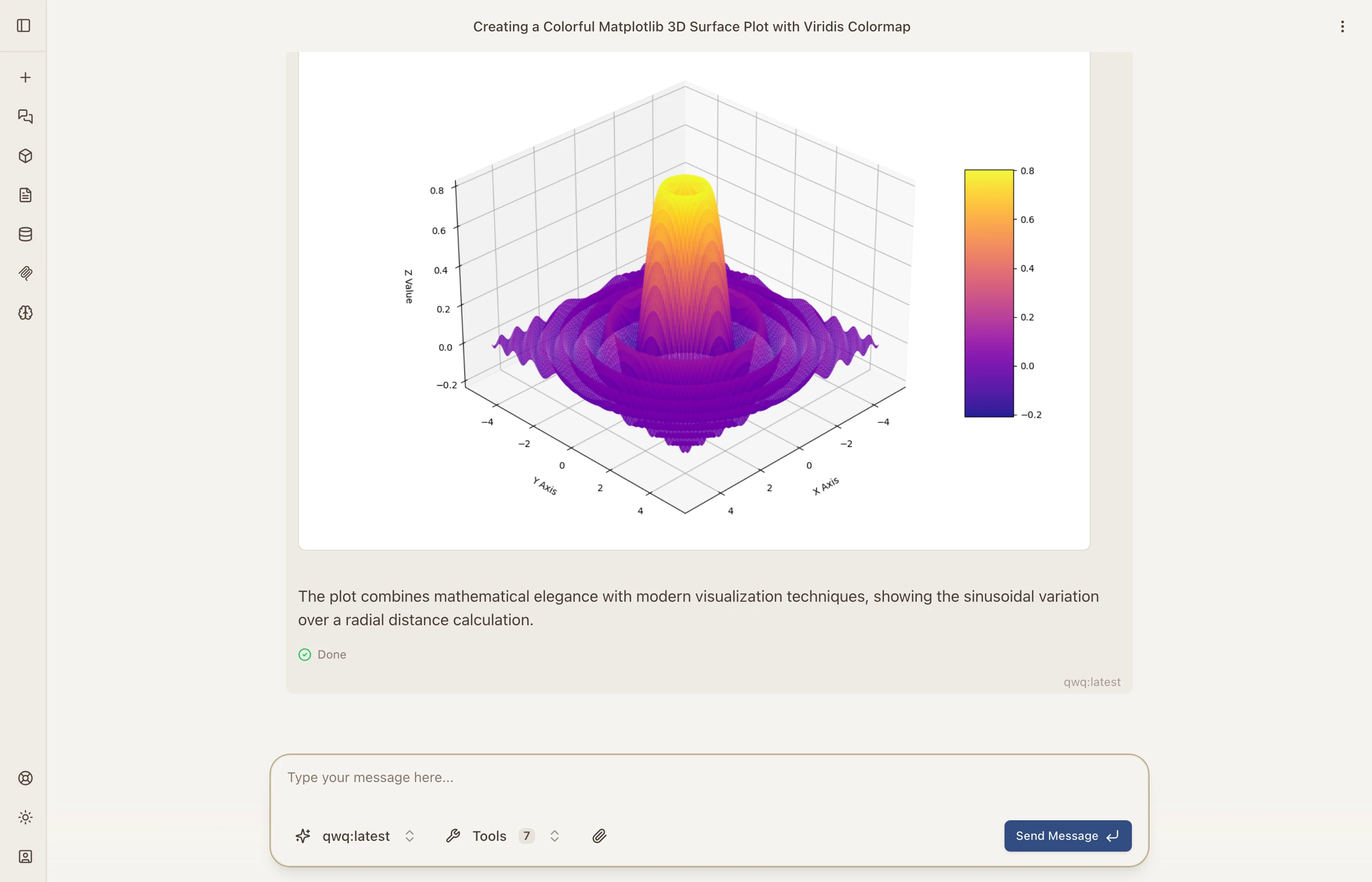
Here the model generated a 3D surface plot using matplotlib and NumPy, executed it, and rendered the result inline. The execution environment supports most popular Python libraries including pandas, scipy, and scikit-learn.
Image Generation
Describe what you want and the AI generates it. The generated image appears directly in the chat.
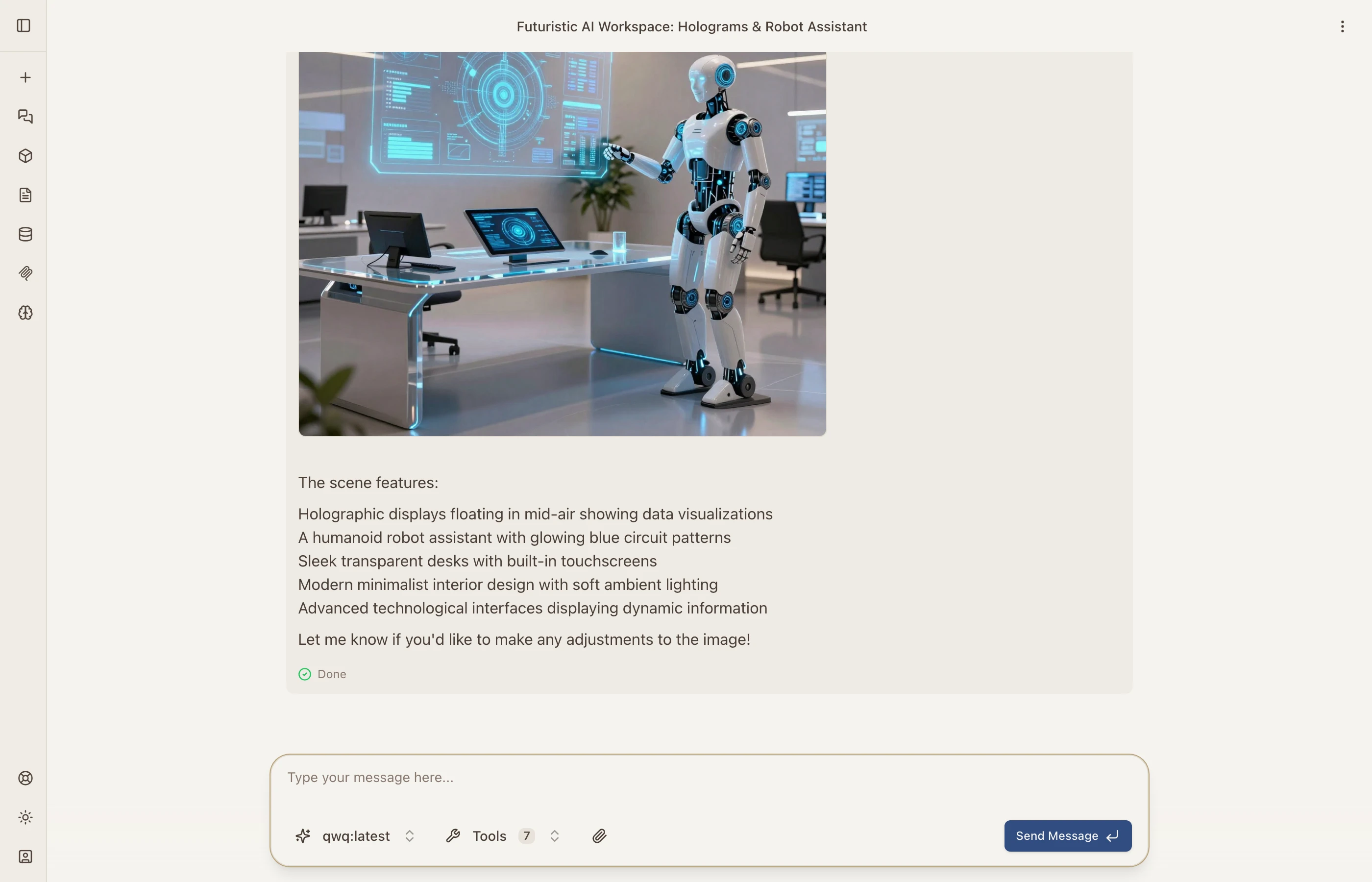
Image Editing
This one’s fun. You can ask the AI to generate an image and then edit it with follow-up instructions. In this example, I asked it to create a cat and then add sunglasses and a party hat:
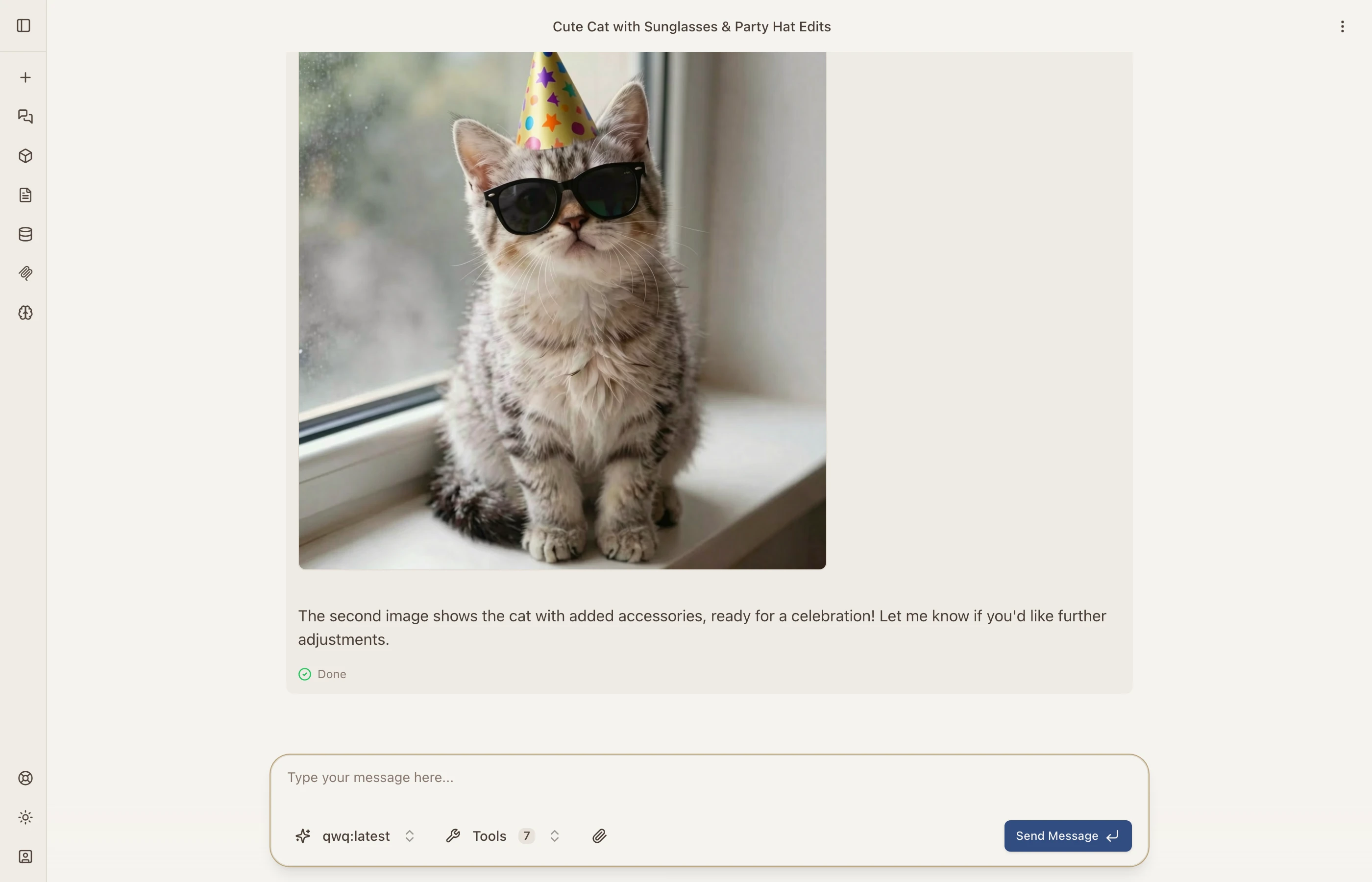
The AI generated the initial image, then used the edit tool to modify it based on my instructions — all in one conversation turn.
Web Search
Catalyst integrates Brave Search, so models can search the web in real time. Ask about current events, recent news, or anything that requires up-to-date information.
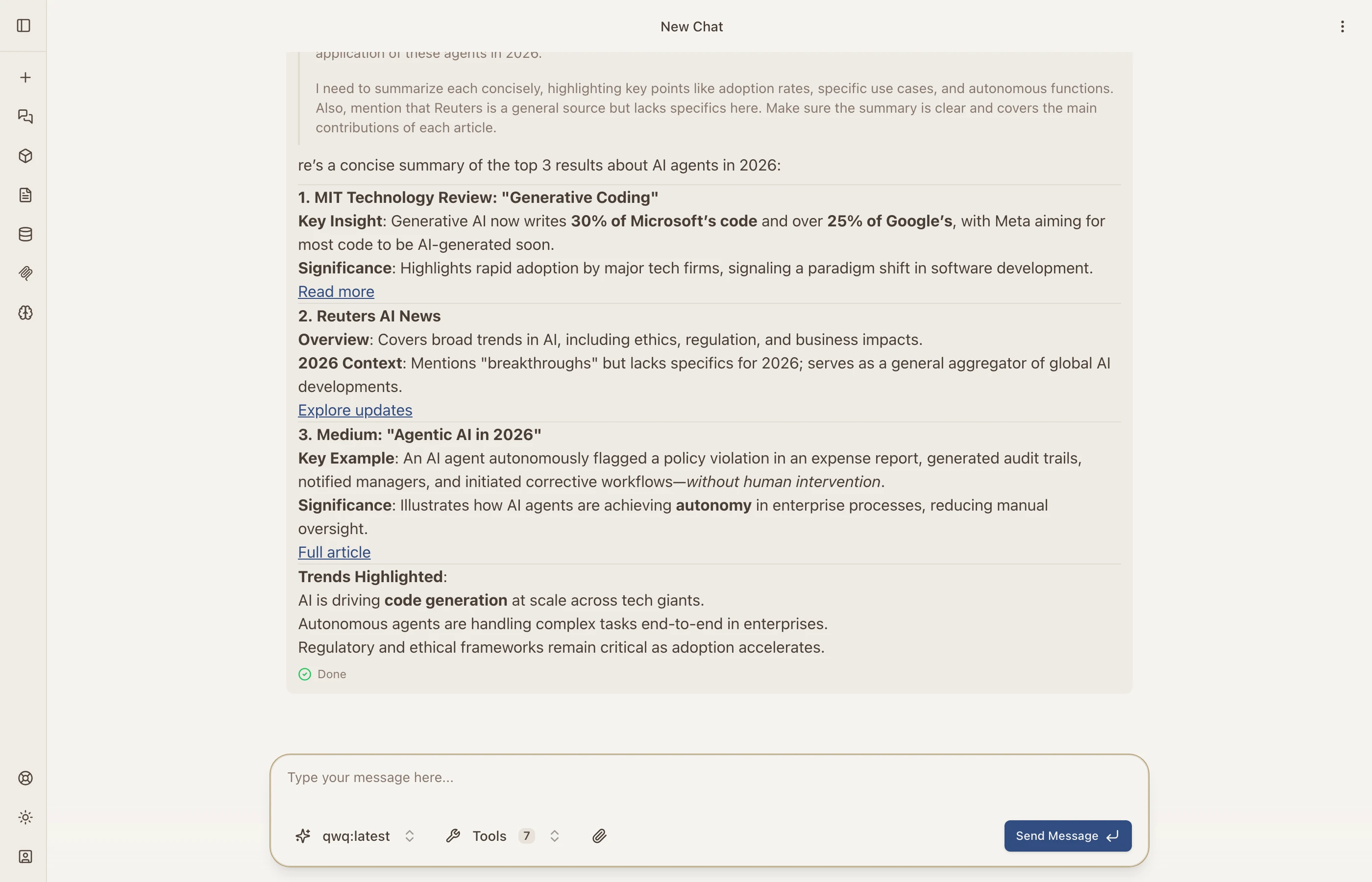
The model searched for AI agent news in 2026 and returned summarized results with source links from MIT Technology Review, Reuters, and Medium.
URL Fetching
Models can fetch and parse any webpage, converting it to readable text. This is great for summarizing articles, extracting data, or analyzing web content.
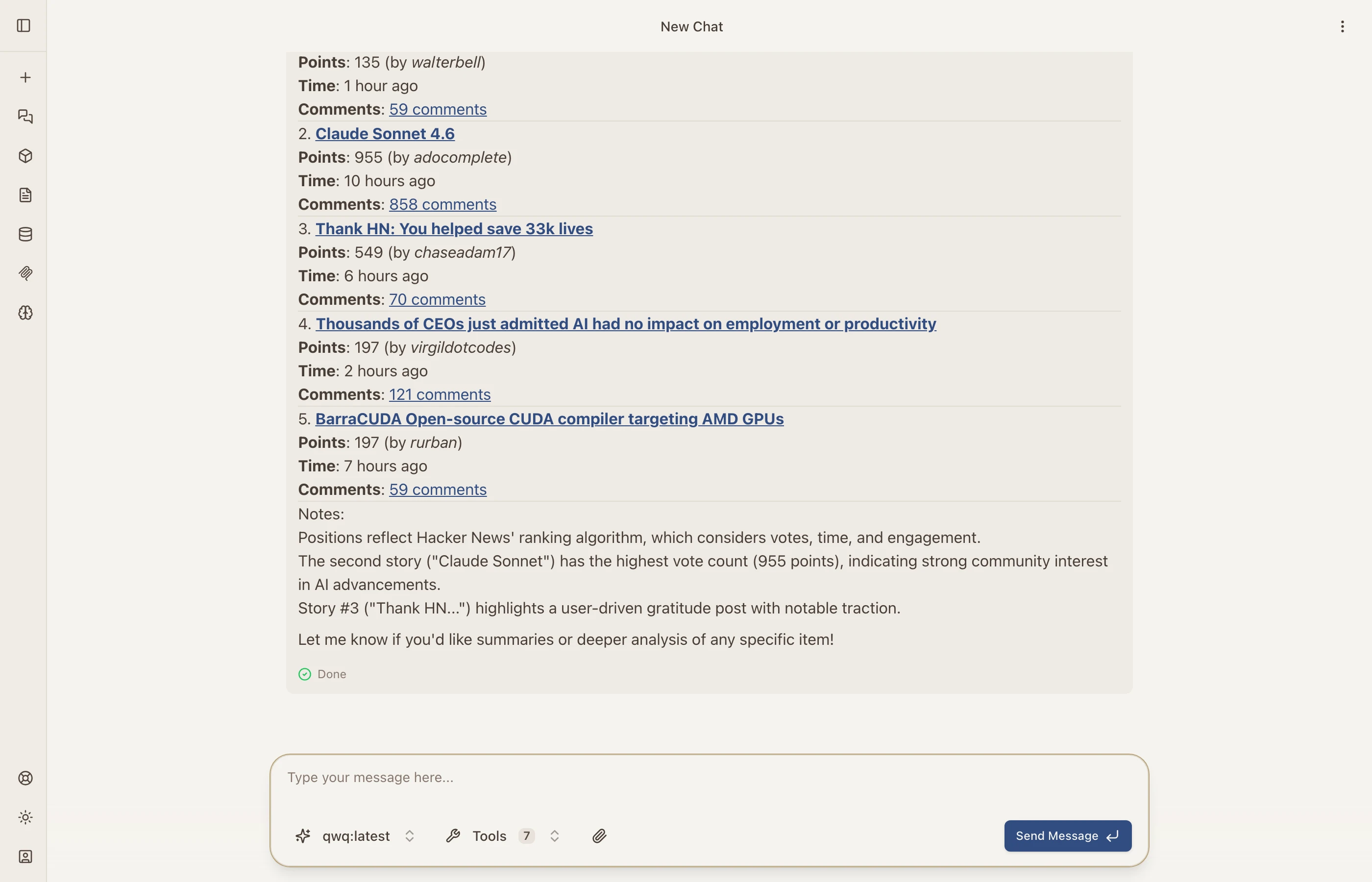
Here the model fetched Hacker News and presented the top 5 stories with points, authors, and comment counts.
Agentic Execution
The real power comes from how these tools chain together. The AI doesn’t just use one tool at a time — it autonomously sequences multiple tools in a single conversation turn. Ask it to “search for the latest stock price of Apple and create a chart,” and it will:
- Use web search to find current data
- Write Python code to process it
- Generate a matplotlib visualization
- Present everything with an explanation
This agentic behavior means you can give high-level instructions and let the AI figure out the execution plan.
Thinking Blocks
Models that support extended thinking (like QwQ) show their reasoning process directly in the conversation. You can see exactly how the AI breaks down a problem, considers different approaches, and arrives at its answer. This transparency is invaluable for complex tasks where you want to understand the reasoning, not just the result.
Prompt Library
Catalyst includes a prompt library for saving and organizing system prompts. You can keep prompts private or share them publicly with your organization.
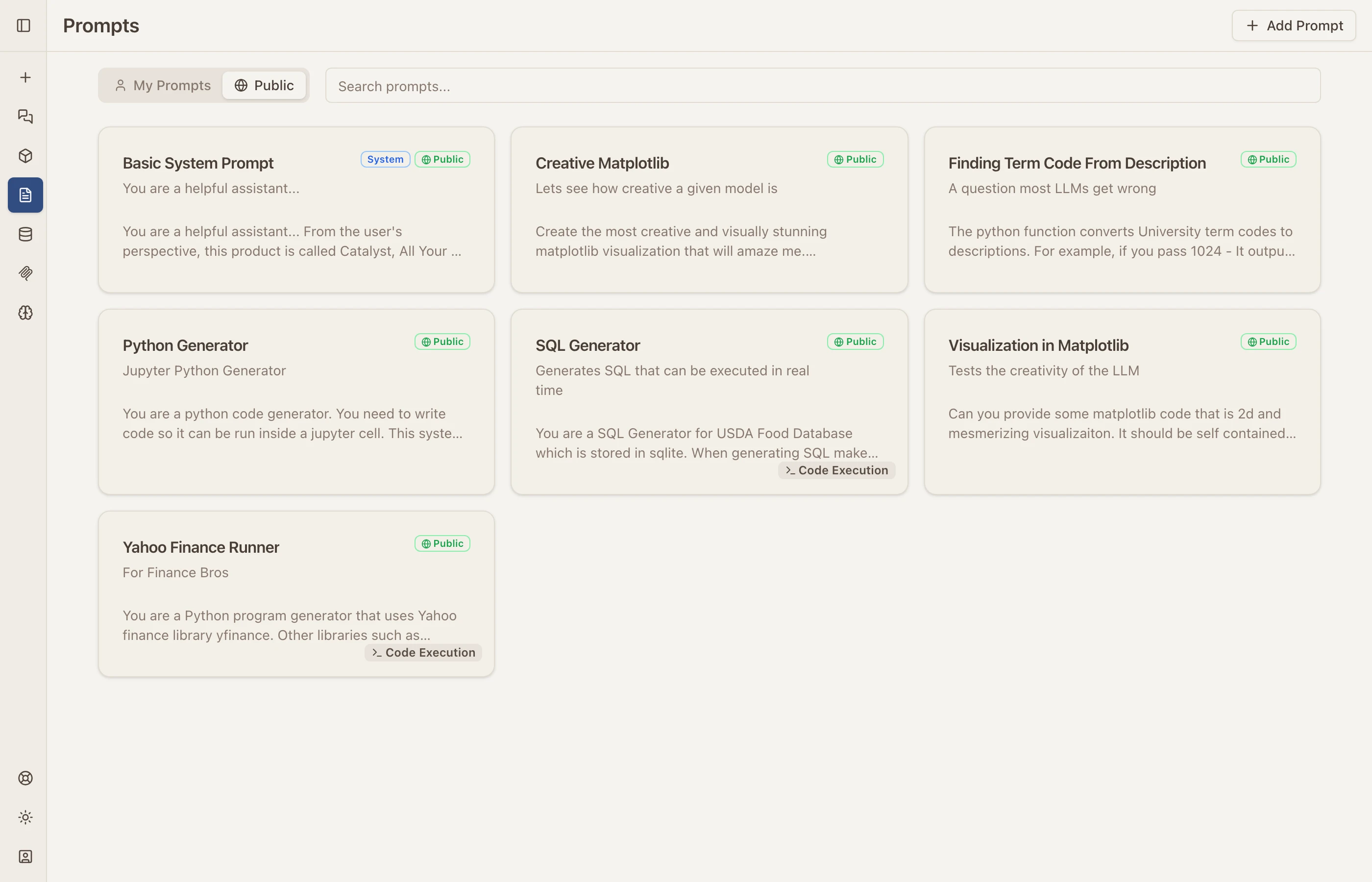
Built-in public prompts include Python generators, SQL query builders, matplotlib visualization prompts, and more. Create your own or use the community-shared ones.
Session Sharing
Any conversation can be shared via a public link. This is how the model comparison screenshot above was created — it’s a shared session that anyone can view. Shared sessions show the full conversation with all tool outputs, images, and code results.
What’s Under the Hood
Catalyst is built with Next.js on the frontend and uses Docker for sandboxed Python code execution via MCP PyExec. The tool system is built on the Model Context Protocol (MCP), which means adding new tools is as simple as standing up a new MCP server — web search, image generation, code execution, and URL fetching are all MCP tools under the hood.
The architecture:
- Next.js frontend with streaming chat UI
- Docker containers for isolated Python execution — each code run gets its own sandbox
- MCP for the tool layer — every tool (search, image gen, code exec, URL fetch) is an MCP server
- Multi-tenant with isolated workspaces per user
- Self-hostable — deploy the full stack with your own API keys and local models
Streaming was one of the trickier parts to get right. AI responses need to stream token-by-token to feel responsive, but when you add tool execution into the mix — where the model pauses mid-stream to run code, search the web, or generate an image — the streaming pipeline gets complex. The chat streams partial responses, pauses while a tool executes in the background, then resumes streaming the model’s follow-up. Getting this to work reliably through Nginx with SSE (Server-Sent Events) required careful configuration to avoid buffering delays — I wrote about optimizing streaming APIs previously, and those lessons carried directly into Catalyst.
Tool execution itself runs as background jobs. When the model decides to run Python code, the request gets dispatched to a Docker container, the result streams back, and the model continues its response. Image generation, web search, and URL fetching all follow the same pattern — fire off the tool, stream partial status updates, then incorporate the result.
If you’re interested in how the Python execution works specifically, I wrote about building the MCP PyExec server in a previous post.
Try It
Catalyst is live at catalyst.voov.ai. Sign in with Google and start chatting. Connect your own API keys, import Ollama models, and explore what’s possible when all your AI tools live in one place.
Links:
- Catalyst — Live app
- Product Page — Feature overview on objectgraph.com